
Last updated Jun 29, 2026.
How to Use Open Source AI Models Directly in VS Code (Without Switching Tools)
7 minutes read

Qubrid Team
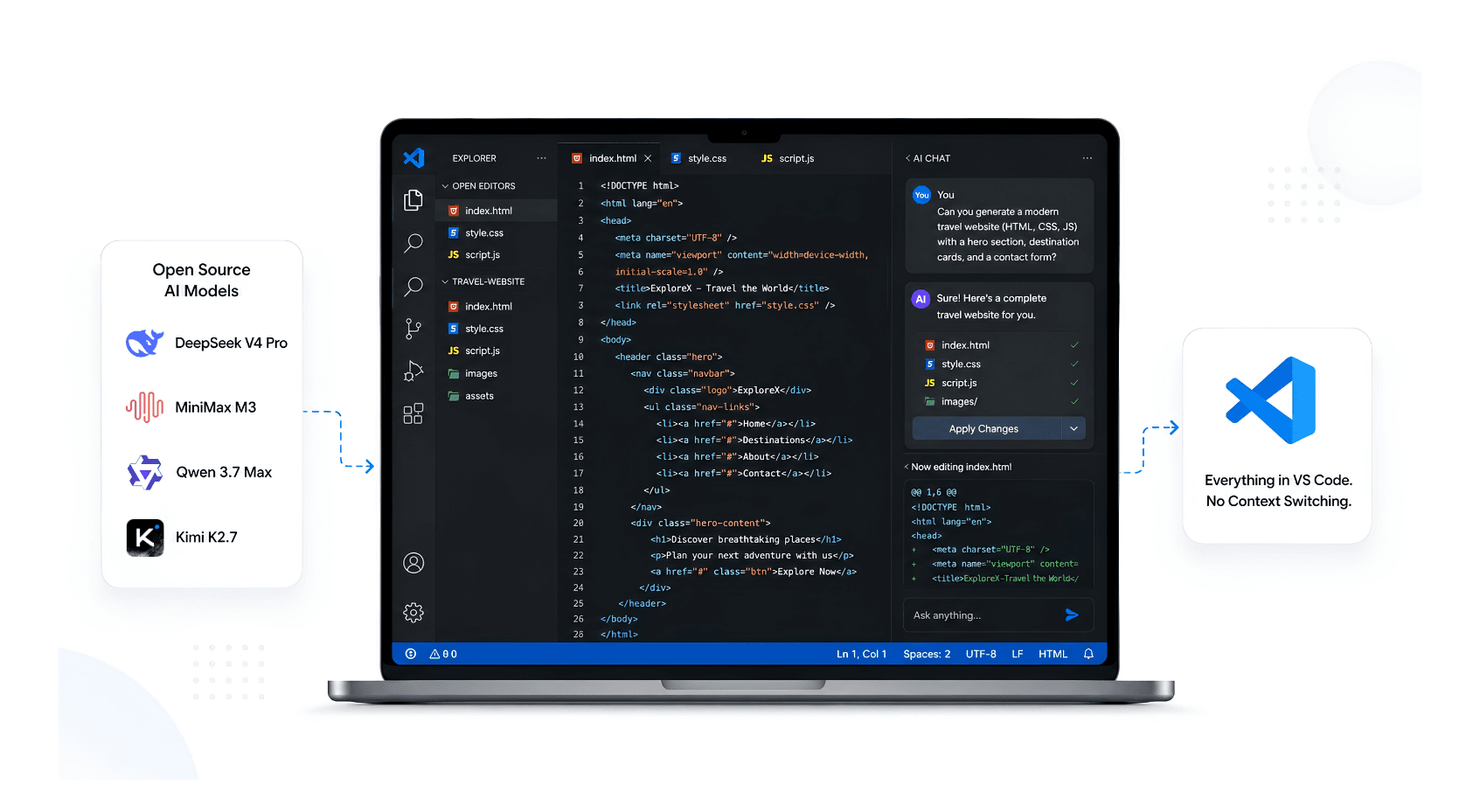
Most developers have the same workflow problem: you write code in VS Code, hit a wall, then alt-tab to a browser, paste your code into some AI chat, copy the answer back, and alt-tab again. Repeat fifty times a day.
It's not a huge friction point individually. But it adds up. More importantly, it means you're constantly locked into whatever models a closed platform decides to give you access to.
There's a better way. VS Code has native support for connecting to custom model endpoints - which means you can bring in virtually any open source model and use it right inside your editor's chat panel. No third-party extensions, no subscription gates on specific models, no lock-in.
Here's how to set it up using Qubrid as the inference backend.
Why Open Source Models in VS Code?
Before the how, it's worth being clear on why this matters.
Model choice. When you use a closed AI coding tool, you get the models they've decided to serve, at the prices they set, on their timeline. With a custom endpoint, you pick the model. DeepSeek for reasoning-heavy tasks, GLM-5.2 for long-context work, Llama 4 when you want a proven general-purpose model - your call.
Context window control. Open source frontier models now support 128K to 1M token context windows. That means you can actually feed in an entire codebase, not just snippets.
No seat license headaches. If you're on a team, per-seat pricing for AI coding tools gets expensive fast. API-based inference scales differently - you pay for what you use, and you can route different models for different tasks.
Data control. For sensitive projects, knowing exactly where your code goes matters. With a self-selected inference provider, you have clarity on data handling that you don't get with opaque closed tools.
What You Actually Need
VS Code (version 1.99 or later - this feature is relatively recent)
A Qubrid account and API key
About five minutes
No extensions to install. This uses VS Code's built-in language model support.
Step 1: Open the Language Models Panel
Open your Command Palette with Cmd+Shift+P (Mac) or Ctrl+Shift+P (Windows/Linux).
Type manage language models and select Chat: Manage Language Models from the results.
This opens VS Code's native panel for configuring model sources. If you've never touched this before, it'll be empty - that's expected.
Step 2: Add a Custom Endpoint
Click + Add Models and choose Custom Endpoint from the options.
VS Code will prompt you for a group name. This is just a label for your own reference - something like Qubrid AI works fine.
Next, paste your Qubrid API key when asked. You can find this in your Qubrid Cloud Platform dashboard under API settings.
For the API type, select Chat Completions API. This is important - Qubrid's inference endpoint follows the OpenAI-compatible /v1/chat/completions format, so this is the correct choice.
Step 3: Configure Your Model in JSON
After setup, VS Code generates a chatLanguageModels.json config file automatically. This is where you specify which model you actually want to use.
Here's an example configuration for GLM-5.2:
[
  {
    "name": "Qubrid AI",
    "vendor": "customendpoint",
    "apiKey": "${input:chat.lm.secret.-627ebf0e}",
    "apiType": "chat-completions",
    "models": [
      {
        "id": "MiniMaxAI/MiniMax-M3",
        "name": "MiniMaxAI/MiniMax-M3",
        "url": "https://platform.qubrid.com/v1",
        "toolCalling": true,
        "vision": true,
        "maxInputTokens": 128000,
        "maxOutputTokens": 16000
      }
    ]
  }
]
A few things to note here:
vendormust stay ascustomendpoint- don't change thisidshould match the model ID from Qubrid's Serverless Models catalog exactlyurlishttps://platform.qubrid.com/v1for all Qubrid-hosted modelscontextWindowandmaxOutputTokensshould reflect the actual model specs - don't guess, check the model card
For example, DeepSeek V4 or MiniMax M3, the config looks nearly identical - you only need to swap the id and name fields, and adjust context window values accordingly.
Step 4: Open Chat and Start Using It
Save the JSON file. Back in VS Code, open the Chat panel (the speech bubble icon in the sidebar, or Ctrl+Alt+I).
In the model picker at the top of the chat, you'll now see your configured model listed under Other Models.
Select it and you're done. You're now running inference against Qubrid's GPU infrastructure directly from inside VS Code - no browser tab, no copy-paste loop.
Picking the Right Model for Coding Tasks
Not all open source models perform equally on coding tasks, and the tradeoffs are worth knowing.
GLM-5.2 is a strong pick for tasks that need extended context - reviewing large files, tracing logic across multiple modules, or working with long API specs. Its 128K context window is genuinely usable at full length, not just theoretical.
DeepSeek models tend to shine on reasoning-intensive problems: debugging tricky logic, generating tests from specs, or working through algorithmic challenges. The chain-of-thought reasoning is perceptibly better on problems that need multi-step thinking.
Llama 4 is the reliable general-purpose option. Fast, solid on a wide range of tasks, and well-tested across the community. Good default if you're not sure which model to reach for.
The practical approach: configure two or three models in your chatLanguageModels.json, then switch between them based on what you're working on. VS Code lets you swap models mid-session from the picker.
A Note on Context Windows and What They Mean in Practice
There's a gap between how context windows are marketed and how they're actually useful.
A 128K context window means you can, in theory, paste in 100,000+ tokens of code and have the model work with all of it. In practice, most coding assistants in IDEs only send the current file or a small selection.
When you control the model endpoint, you also control what gets sent. You can be deliberate about context - paste in multiple files, include your project README, add relevant test cases. Models served through Qubrid's API accept the full context window you configure, so you're not artificially capped by the tool layer.
This is one of the less-discussed advantages of running your own endpoint. The model access and the context management are separate concerns, and you hold both levers.
What Doesn't Work (Yet)
Worth being honest about the current limitations.
VS Code's custom endpoint support is relatively new, and some advanced features that work with Copilot don't yet extend to custom models - things like inline completions (ghost text as you type) and deep workspace indexing. What you get is a fully functional chat panel, which covers the majority of daily AI-assisted coding workflows.
If you're primarily using AI for chat-based assistance - asking questions, generating functions, reviewing code, explaining errors - the custom endpoint approach works exactly as you'd expect. If inline autocomplete is your primary use case, you'll want to combine this with a completion-specific tool.
Wrapping Up
The setup takes five minutes and the payoff is genuine: open source model access inside your editor, with real control over which model you're using and on what context.
The broader point is that VS Code's custom endpoint support has made this kind of flexibility accessible without requiring any special tooling or extensions. Pair it with a GPU cloud inference provider like Qubrid that exposes an OpenAI-compatible API, and the barrier drops to almost nothing.
If you want to try this with Qubrid's serverless inference, you can browse the available models and get an API key at platform.qubrid.com. The full list of supported models - including context window specs and capability flags - is in the Serverless Models section of the platform.
Have a model configuration that's working well for you? The VS Code + open source model setup is still early enough that there isn't one obvious right answer - would be interested to hear what's working.
Related posts
View all posts
Grok 4.5 vs GLM-5.2: What xAI's Own Benchmarks Reveal About Open-Source AI Models (July 2026)
Grok 4.5 launched at $2/$6 per million tokens. xAI's own charts show open-source GLM-5.2 just 2.6 points behind on SWE Bench Pro. Full comparison inside.
 Qubrid Team
Qubrid AI Is Now Live on the Dify Marketplace
Qubrid AI is now officially listed on the Dify Marketplace, giving Dify's developer community direct, OpenAI-compatible access to Qubrid's model catalog inside any chat app, agent, or workflow. No custom integration, no separate infrastructure to stand up. Install the plugin, connect an API key, and Qubrid's models are available wherever Dify builds.
Qubrid Team
The Best Open-Source LLMs for Coding in 2026: A Qubrid AI Guide
The open-source coding race just lapped the closed frontier on price. Here's how to pick your model
Qubrid Team